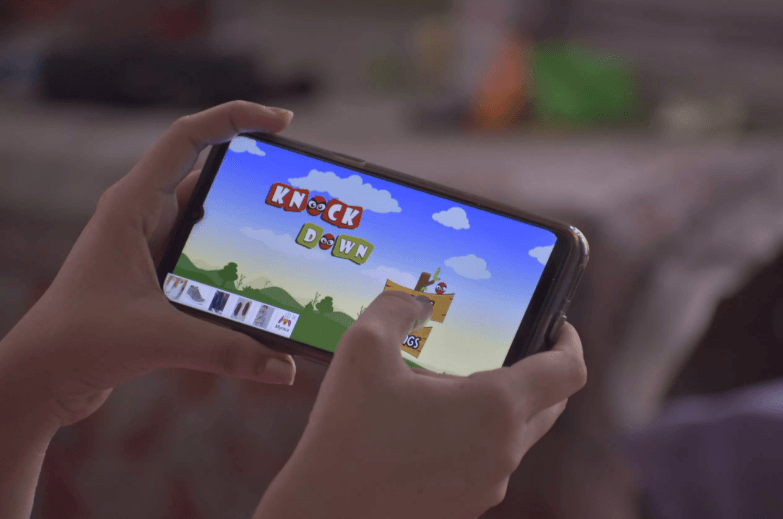
Before installing a mobile game, it may appear rather modest and small, while after installation, it can look as big as ever. The download number associated with the original download is frequently just part of the story of storage. Installation can extract compressed files, generate working folders, add device specific information, etc., and prepare data the game requires quick access to. This is a typical issue in a lot of Android applications, and can be particularly pronounced for those games that have complex graphics, sound, animation, or content that changes often.
The same question can come up with a desi play apk download or another Android game package. A compact file may be enough to start installation, but the finished app can require additional space for resources that were not stored in their final form inside that package. Looking at storage as a process rather than a single download number makes the change much easier to explain.
The Downloaded File Is Only the Starting Package
An APK stores files that Android requires to install an app, but the files don’t always look exactly the same when they are present in the app. Resources are sometimes compressed to reduce the size and speed of transferring the package. They are prepared for use by the operating system during installation and different parts of the installed application are installed in the places where the operating system expects them.
This can make the installed version larger than the original download. Games also tend to contain more media than many everyday apps. Textures, interface graphics, sound effects, fonts, animations, and other assets all require storage once they are prepared for use. A download size therefore describes the package being transferred, while installed size describes a broader collection of working files.
Extra Content Can Arrive After the First Launch
Many mobile games do not include every asset in the initial package. The first installation may contain the application itself and enough material to open the main interface. Once the game starts, it can download additional resources needed for particular screens, languages, events, levels, or other parts of the experience.
Common examples of files added later include:
- Higher resolution graphics for the device.
- Additional sound and music files.
- Language resources selected by the user.
- Content for new levels or game modes.
- Updated interface assets.
- Files used by optional features.
This approach can keep the first download smaller while allowing the app to add only what is needed. It also explains why checking storage immediately after installation and checking it again after several sessions can produce different numbers.
Updates Add and Replace Game Files Over Time
Mobile games rarely remain identical to the version installed on the first day. Developers release updates to add content, refresh graphics, change interface elements, improve compatibility, or replace existing resources. Some updates overwrite older files efficiently, while others temporarily require both the old and new versions during the installation process.
Storage use can therefore move up and down rather than increasing in a perfectly straight line. An update may add new assets while removing outdated ones. Another may introduce a feature that requires extra files permanently. The size shown in the app store or download package cannot always predict the final result because each device may already contain a different combination of previous updates and resources.
Cache and Temporary Data Grow Through Normal Use
Games create working data while they are being used. Cached files can store images, interface elements, or other resources that the app expects to need again. Keeping a local copy can reduce repeated downloads and make frequently used screens open more quickly. The amount of cache can grow as more parts of the game are opened.
Saved settings and local data also contribute to the total. A game may keep preferences, session information, downloaded configuration files, or records needed to restore the user experience after the app closes. These files are usually much smaller than large graphics or audio packages, but together they help explain why two phones with the same installed game may report different storage totals.
Device Differences Can Change the Final Size
The same game does not always occupy exactly the same amount of space on every phone. Devices have different screen resolutions, processors, Android versions, and supported graphics capabilities. Some apps download resources that match the hardware rather than installing every possible version of each asset.
Usage also changes the result. One person may have opened several optional sections and downloaded extra content, while another may use only the basic features. Language choice, cached material, update history, and time since installation can all affect the number displayed in Android storage settings. That makes installed size a more personal figure than the original package size.
Storage Numbers Make More Sense When Viewed in Stages
The easiest way to read mobile game storage is to separate it into stages. First comes the download package. Installation then prepares and expands the files. The first launch may bring additional resources, while later sessions generate cache and local data. Updates can add another layer as the app changes over time.
Android settings usually provide the clearest picture of what is happening because they can separate the application itself from user data and cache. Checking those categories shows whether extra space comes from the core game, downloaded content, or temporary files. A larger installed size does not mean the original download figure was wrong. It usually means the game has moved from a compact delivery package to the full set of files it needs for everyday use.
